For most authors, Calibre is the fastest honest answer: it converts DOCX to EPUB for free, it runs on Windows, macOS, and Linux, and per the project's documentation it can embed or link styles, rescale images, and build a table of contents from headings. The qualification matters, though — no converter reads your mind. A DOCX with ad-hoc formatting produces a messy EPUB, and the three tools compared below fail differently on the same manuscript. EPUB's standing as a Library of Congress recommended format for digital publications is the reason this conversion is worth doing carefully at all.
What are the main ways to convert DOCX to EPUB?
Three routes cover nearly everyone.
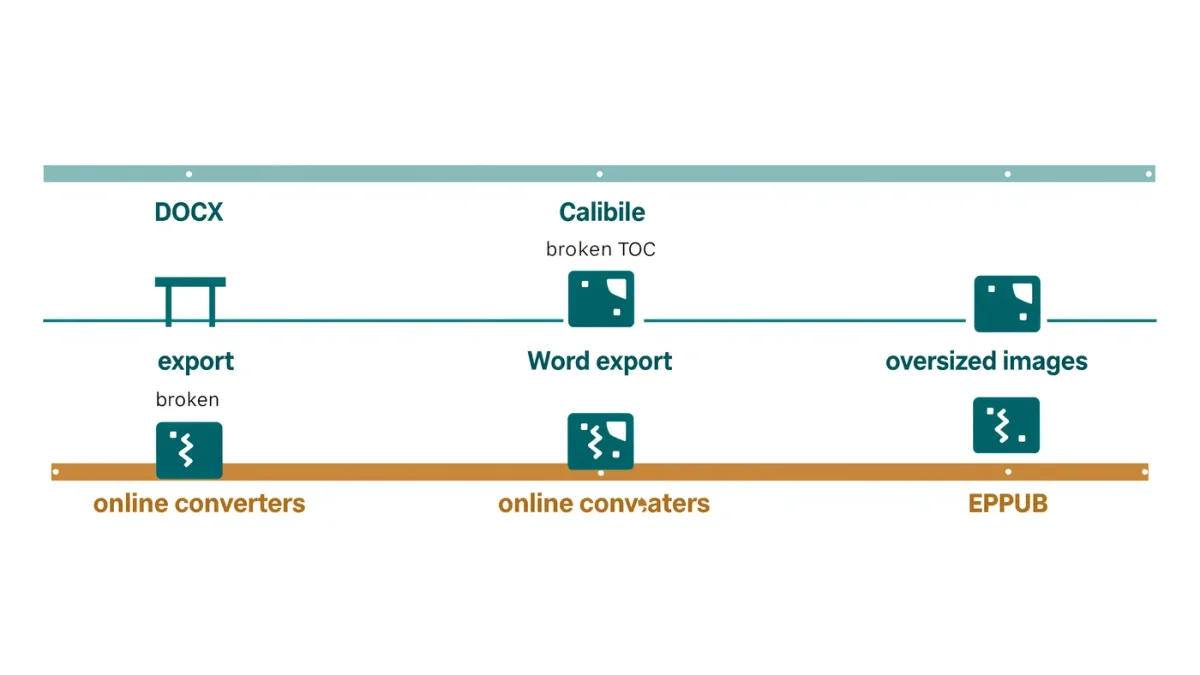
- Calibre: free, open source, offline. Add the DOCX, hit Convert, choose EPUB. Heuristic processing can strip hard line breaks and fix headings; per the project's documentation, much of it is optional and should be reviewed rather than blindly trusted.
- Microsoft Word's built-in EPUB export: Word itself exports to EPUB, which sounds ideal until you meet its opinionated styling. It works best when the manuscript is built on real Word styles — Heading 1, Heading 2, Normal — rather than manual bold and font changes.
- Online converters and distributor tools: various publishing services and web converters accept DOCX and return EPUB. Convenient, but you're uploading your manuscript to a third party and accepting whatever formatting decisions the service makes.
Why does the table of contents break so often?
Because a converter cannot reliably tell a chapter title from a line the author made big and bold. Every serious tool builds the TOC from structural styles, not appearance. If your DOCX uses Heading 1 for chapter titles, the EPUB's TOC assembles itself; if it uses 18-point bold Normal text, you get a TOC with one entry or thirty wrong ones. Fix this in the DOCX before converting: apply real heading styles, one per chapter, consistently. It is the single highest-leverage twenty minutes in the whole process.
What happens to images and special characters?
Images are the second classic failure. Oversized print-resolution covers and interior art bloat the EPUB and can render as blank frames on older e-readers; per Calibre's documentation, the converter can resize images on output, which is usually worth enabling. Keep images in a sensible web-friendly size, avoid floating text boxes — converters flatten or drop them — and remember that anything Word draws with shapes probably won't survive at all.
Special characters fail quietly. Smart quotes usually convert fine; ligature glyphs, symbols pasted from other apps, and exotic fonts embedded in the DOCX often turn into question marks or boxes. A quick search for unusual characters in the converted EPUB, or a preview in a desktop reader before upload, catches most of it.
Which mistakes should you check for after every conversion?
- A broken or missing table of contents — almost always a heading-style problem in the source DOCX.
- Double spacing or hard line breaks mid-paragraph, typically from text pasted from elsewhere; Calibre's heuristic processing can remove many of them.
- Page numbers carried over from print — meaningless in reflowable EPUB and a sign headers or footers were copied into the body.
- Bloated file size from un-resized images.
- Missing or garbled cover — set the cover explicitly in your converter rather than letting it pick the first image.
How do you check the result before you call it done?
Conversion without verification is how broken e-books reach stores. The cheap checks, in order of value: open the EPUB in a desktop reader and page through the first three chapters, checking spacing and the TOC links; resize the window or font — reflowable text should re-wrap, and if lines stay fixed something was converted as hard formatting; click every TOC entry; and glance at the file size, since a 20 MB novel means un-resized images. For authors publishing commercially, the retailer's own previewer is the final authority, because it renders the file the way buyers' devices will.
Beyond previewing, a validator catches structural problems the eye misses. Free EPUB validation is built into editing tools like Sigil, which per its documentation bundles a validator, and checking once after each conversion cycle means problems surface while the fix is still one step rather than a rebuild.
Does the tool choice change for fiction versus nonfiction?
Not as much as people expect, but the failure modes differ. Fiction is mostly flowing text; any of the three routes produces a serviceable EPUB if heading styles are clean, and the checklist above covers it. Nonfiction adds footnotes, tables, and image-heavy sections — the three areas where converters diverge most. Tables flatten badly when a DOCX uses them for layout rather than data; footnotes need to become live endnote links to work on e-readers; and multi-column layouts from print-oriented design files rarely survive conversion at all. For books like these, plan on opening the converted file in an EPUB editor and fixing these three categories by hand, whichever converter you started with. The converter earns you 90 percent of the file; the last 10 percent is always an editing job, not a conversion setting.
How do you pick between them?
If you want free, offline, and adjustable, use Calibre and spend your effort on clean source styles. If your manuscript already lives entirely in Word styles, Word's own export is a reasonable quick pass — then check the result. If you're publishing through a distributor that accepts DOCX directly, compare its output with Calibre's on the same file and keep the better one. In every case the deeper truth holds: converters translate structure, they don't create it. The cleanest EPUBs come from the cleanest DOCX, and no tool in this comparison is exempt from that.