Sigil is a free, open-source EPUB editor, and the direct answer is this: it lets you edit the actual files inside an EPUB — the XHTML chapters, the stylesheet, the images, the metadata, and the spine that orders them — with validation built in. Per the project's documentation, Sigil works on EPUB 2 and EPUB 3 and runs on Windows, macOS, and Linux. It's the right tool when you need to fix one broken thing inside an otherwise finished book, and the wrong tool for rewriting a manuscript, because you're working on code, not on a word-processor page.
What does Sigil show you when you open an EPUB?
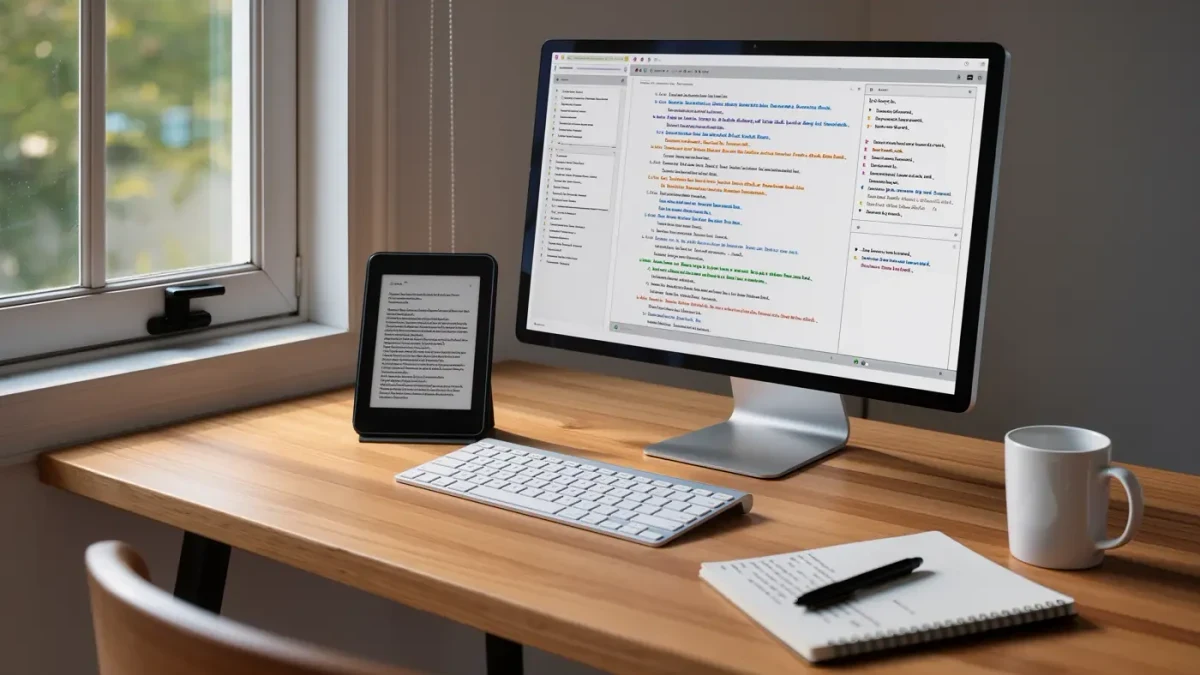
A book in Sigil looks like a file tree plus a editing pane. The Book Browser lists every file inside the EPUB: text chapters, stylesheets, images, fonts, and the OPF package file that ties it together. Click a chapter and you can edit it in Code View, which shows the raw XHTML, or Preview, which renders it approximately as a reader app would. Per the project's documentation, theFlightCREW validator bundled with Sigil checks the book against the EPUB specification, so you know immediately whether an edit broke something structural.
The metadata editor handles title, author, language, ISBN, and series-type fields directly. If your converter wrote the author's name backwards or dropped the language tag — which breaks hyphenation on real devices — that's a two-minute fix here.
Which fixes is Sigil the natural tool for?
- A chapter that renders with wrong spacing: open the stylesheet, find the offending rule, fix it once for the whole book.
- A missing or duplicated chapter in the TOC: edit the NCX or NAV file directly and regenerate entries.
- Replacing a garbled cover: swap the image file and correct the cover declaration in the OPF.
- Search-and-replace across every chapter: Sigil's Find & Replace can run across all HTML files at once, including regex — the fast way to fix a consistent typo or a wrong dash style book-wide.
- Cleaning converter leftovers: stray empty paragraphs, hardcoded font sizes, junk classes from DOCX conversion.
How should a first-time user work safely?
Treat Sigil like surgery, not rewriting. Keep an untouched copy of the original EPUB before you open it. Make one change, save, and re-run validation; per the project's documentation, saving keeps the same file structure, so a book that validated before your edit should validate after. Rename files inside Sigil rather than in a file manager — the OPF references every file by name, and renaming outside the editor breaks those references instantly.
Version-stated basics: Sigil has been maintained as an open-source project for over a decade, with regular releases on GitHub; grab the current stable build rather than an old tutorial's download link, because EPUB 3 support and the bundled validator have both improved across versions.
How do you check your work the way a device will?
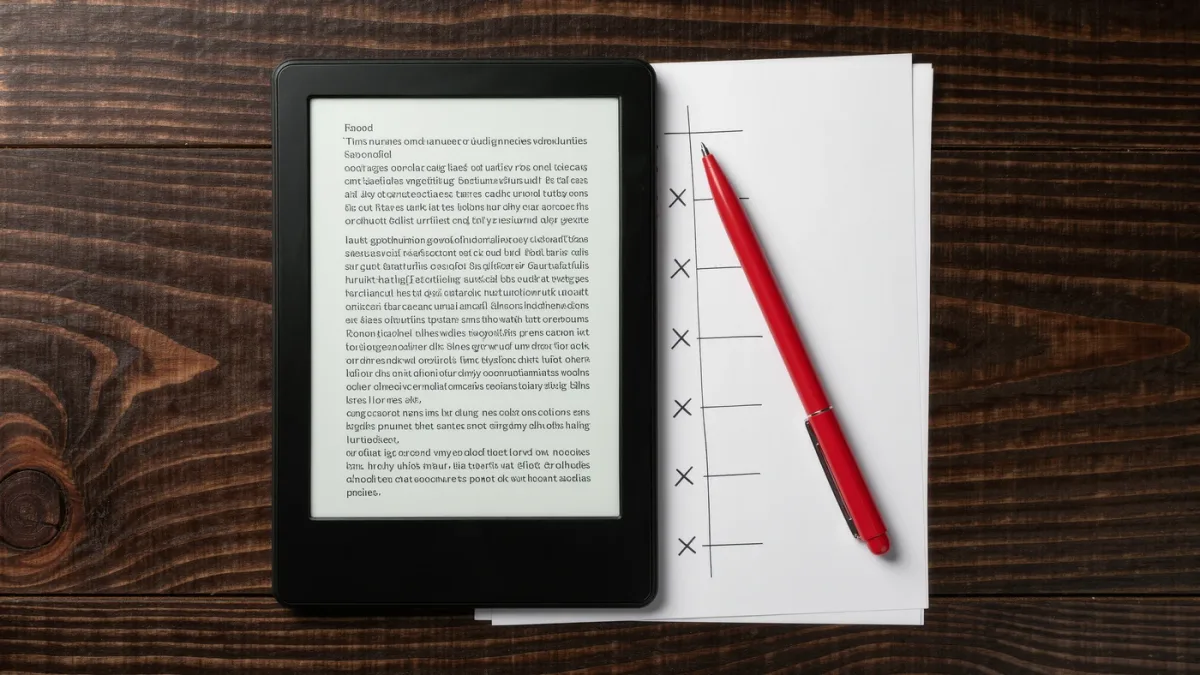
Sigil's Preview is convenient but approximate, per the project's documentation, so build a two-step verification habit. First, run Sigil's bundled validator after every editing session — it flags structural errors against the EPUB specification, which is what retailers' automated checks will also flag. Second, open the saved EPUB in at least one desktop reading application and, before publishing, on the actual hardware or app your readers use most, whether that's a Kindle, a Kobo, or a phone app. Renderers disagree about hyphenation, font substitution, and image scaling, and a book that looks fine in Preview can still surprise you on e-ink.
A useful discipline for proofreaders: keep a short personal checklist of the errors you actually find — missing language tag, unstyled chapter openers, double blank lines — and run it on every book before sign-off. Most production errors repeat, and a checklist turns that repetition into speed.
What shouldn't you try to do in Sigil?
Don't restructure a whole book chapter by chapter if a converter rebuild takes ten minutes. Don't edit DRM-protected files — most tools won't open them, and circumvention is legally fraught, so this workflow applies only to files you have the right to modify, such as your own manuscripts or DRM-free purchases where the seller permits it. And don't trust Preview as final proof: render the finished EPUB on an actual e-reader or reading app before publishing, because font handling, hyphenation, and image scaling differ between renderers.
How does Sigil fit an author's or proofreader's workflow?
A practical loop: produce the EPUB with your converter of choice, open it in Sigil, fix structural and styling issues, validate, then proof on-device. Repeat only if the source changes. The division of labor is clean — converters translate the manuscript, Sigil polishes the result, and validation plus a device render is what tells you the book is genuinely done.