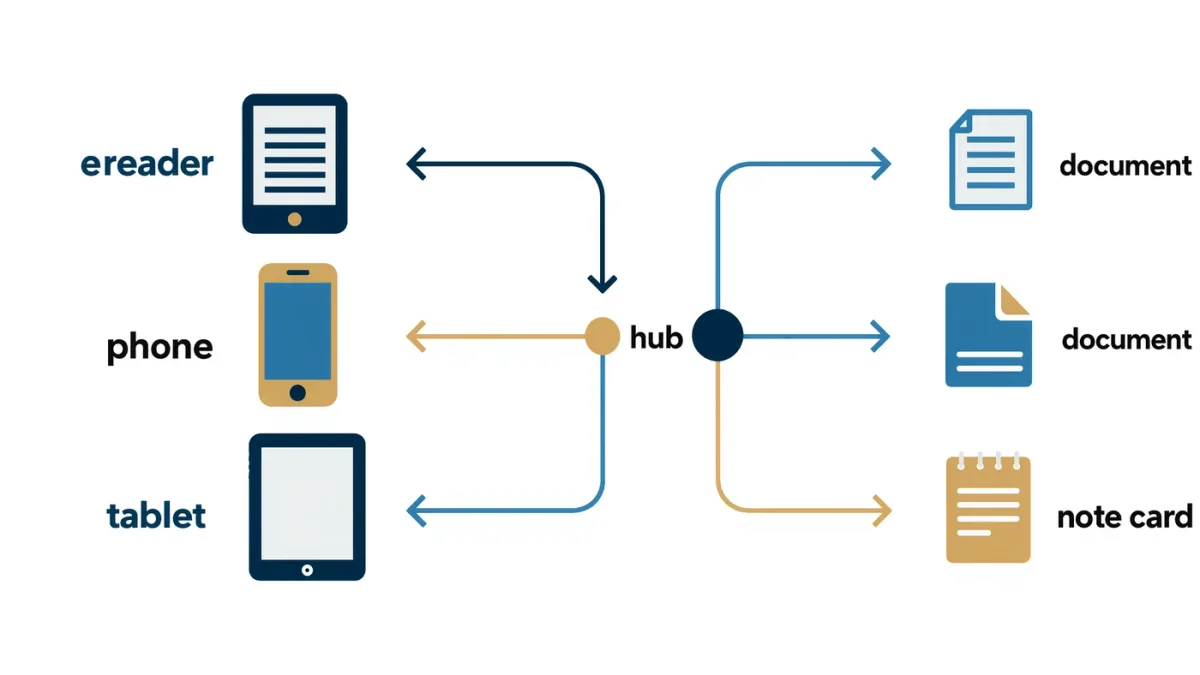
Yes — you can get highlights out of most major reading platforms and into Readwise, the sync service that pulls clippings from Kindle and other sources into apps like Notion, Obsidian, and Evernote. The standard path for Kindle takes an account connection and a few minutes; other platforms need an export step first. This guide walks both, based on the companies' own documentation.
Worth the effort, too: research indexed by the U.S. National Library of Medicine links active note-taking with stronger comprehension and retention, which is the whole reason highlights are worth rescuing from a forgotten device.
Why do highlights need rescuing at all?
Because readers change devices, and platforms store highlights differently. Kindle keeps your notes and highlights on a web notebook page tied to your Amazon account; other readers and apps vary — some sync, some export files, some keep everything on the device. Per Amazon's support pages, Kindle highlights live at the notebook section of the read site for your account, and that page lets you view and copy them book by book.
The risk is not losing them today. It is forgetting which app held them in three years.
How do you connect Kindle highlights to Readwise?
Readwise's documented method is an account connection: you authorize Readwise to access your Amazon highlights, and it periodically imports new clippings. The steps, per Readwise's help documentation:
- Create a Readwise account.
- Open the connections or imports settings and select Amazon Kindle.
- Sign in with your Amazon credentials and approve the link.
- Run the first import; your highlight notebook syncs.
After that, new highlights flow in automatically on Readwise's sync schedule. If a book is missing, re-running the import usually finds it — per Readwise's own troubleshooting notes.
What about highlights from apps and other readers?
Anything that can produce text can reach Readwise. The service's help center documents manual imports — uploading files or pasting text — alongside its automatic connections. So the practical chain for, say, Libby or Apple Books is: export or copy your notes within that app's own settings, then feed them to Readwise manually or through whatever connection it documents for that source.
Check the source app first: Libby, per its help pages, lets you review notes and highlights from your timeline while a loan is active. Export before the loan expires — after that, there is nothing left to export.
Where do the highlights go after Readwise?
Readwise's headline feature is onward syncing to note-taking tools — Notion, Obsidian, Evernote, and others per its documentation, usually with Markdown formatting and book metadata preserved. Notion users get a database of highlights; Obsidian users get Markdown files in their vault. Readwise also has its own review app that resurfaces old highlights spaced-repetition style, for readers who want the material to stick rather than just to be stored.
Configure one destination well rather than three badly. The export tools respect where you actually work.
Is there a way to do this without a subscription service?
Yes, the manual route. The Kindle notebook page lets you see your highlights per book; copying them into a document or note is tedious but free and requires no third-party account. You can also export from many reading apps to plain files and file them in a folder your notes tool can index. The trade-off is simple: manual means re-doing it every few months; automated means trusting a service with a connection to your reading account.
MonBook Pro publishes information, not privacy advice — weigh the account connection against how sensitive your reading list is to you.
What should you check before committing to a workflow?
- Which of your reading sources are supported automatically, per Readwise's current list — it changes.
- Whether your destination app receives Markdown cleanly — test with one book, not two hundred.
- That your e-reader account, not the device, holds the highlights — devices get sold; accounts persist.
- The export window on library loans: highlights expire with the loan.
Is a highlights workflow worth it?
If you read to remember — nonfiction, professional material, anything you quote later — a synced highlights pipeline pays for itself the first time you search a phrase and find the book it came from. If you read fiction for escape, your device's built-in list is probably enough. Either way, do the Kindle connection once: it is the best-documented path in this whole ecosystem, and it makes every other step easier to justify.