Yes — Libby, the library-reading app from OverDrive, lets you borrow e-books and audiobooks with a single library card, and in the United States it can send many borrowed e-books straight to a Kindle e-reader, per Libby's own help pages. The trick is knowing which settings to adjust and which features hide one tap deep.
One caveat worth naming: library e-book lending is a licensed, cost-limited system. The Associated Press has reported on how publishers' terms and prices strain library budgets — so expect holds, not instant everything.
How do you set up Libby with more than one library card?
Install Libby, add a card by entering your library and card number, then add another card the same way — the app supports multiple cards and multiple library systems. Tapping the library switcher at the bottom shows all your libraries side by side, so a title unavailable at one may be borrowable at another.
Use the search once, then check each library's availability from the same result screen. If you have cards in two systems, Libby effectively doubles your catalog without doubling your effort.
What is the best way to send a borrowed book to a Kindle?
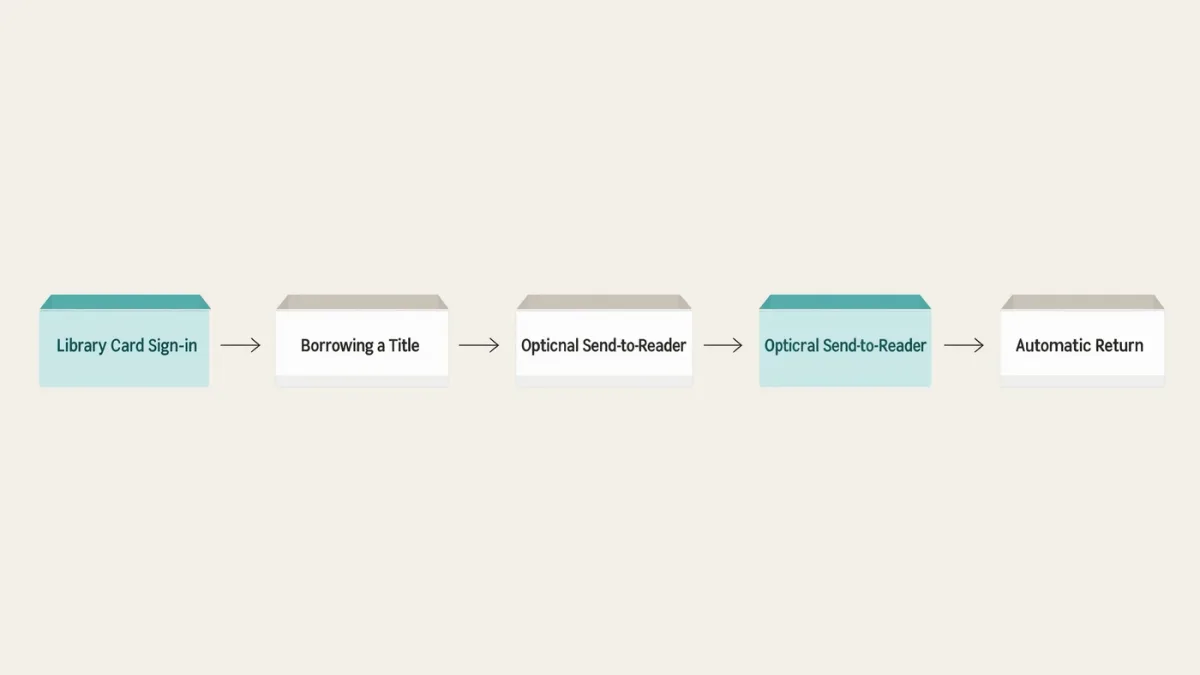
In the U.S., many loans show a "Read With... Kindle" option, per Libby's help documentation. The flow: borrow the book, choose the Kindle option, and Libby hands you to Amazon's sign-in, where the loan appears on your device like any other Kindle title. When the loan ends, the book simply leaves — no overdue fees, because returns are automatic.
- Borrow the title from the library shelf.
- Tap "Read With... Kindle" when the option appears (U.S. libraries, where the publisher licenses it).
- Sign in to your Amazon account when prompted and confirm the delivery destination.
- Open your Kindle's library and sync; the loan arrives like a purchase.
How do you make holds and loans less painful?
Libby's settings let you set default loan periods per library — shorter loans finish faster, and finished books return sooner, freeing the copy for the next person in line, which also helps your library's budget. For popular titles, place a hold, then let the app work. Libby's "deliver later" setting on holds means when your copy arrives it does not burn borrowing days while you are mid-book.
Tags are the underrated half of this: tag a title "want" while browsing, and Libby builds a reading list the library cannot. You are not spending a hold on a book you may forget.
Can you read inside Libby comfortably on a phone or tablet?
Yes, and the in-app reader is better than people expect. Libby's reader settings include adjustable text size, lighting options including a night mode, and a bookmark that syncs across devices on the same account. Fonts and justification can be tuned per your taste — not to E Ink levels of customization, but far beyond what most library apps offered a decade ago.
For e-reader loyalists, note the split: Kindles get the U.S. send-to-Kindle path, while Kobo devices integrate OverDrive borrowing natively in supported regions, per Kobo's support documentation. Readers of other brands use Libby's own reader.
What do you lose when a loan expires?
The book, but not your notes — sort of. Per Libby's help pages, notes and highlights you made in the Libby reader can be reviewed from your timeline and exported before the loan ends; do it on the last day, because after expiry the content is gone. Kindle-delivered loans keep highlights in your Amazon highlights notebook, but the book text itself becomes unavailable.
If a passage matters, copy it out while you hold the loan. Library books are temporary by design.
Any smaller Libby tricks worth knowing?
- Switch between e-book and audiobook formats of the same title where the library licenses both — your hold position is per-format.
- Use "Notify Me" on titles your library does not own; some systems use those signals for purchasing decisions, per OverDrive's library-facing documentation.
- Check the timeline to see your borrowing history and finish dates.
- Renewals: Libby offers them near the end of a loan if no one else holds the title.
Is Libby the right app for you?
If your local library licenses with OverDrive — most U.S. systems do — Libby is the smoothest path from card to book, and the only one that hands loans to a Kindle. Pair it with realistic expectations about waits on bestsellers, keep two cards if you can, and set your loan periods short. Library e-reading is the best deal in books; it just runs on patience.