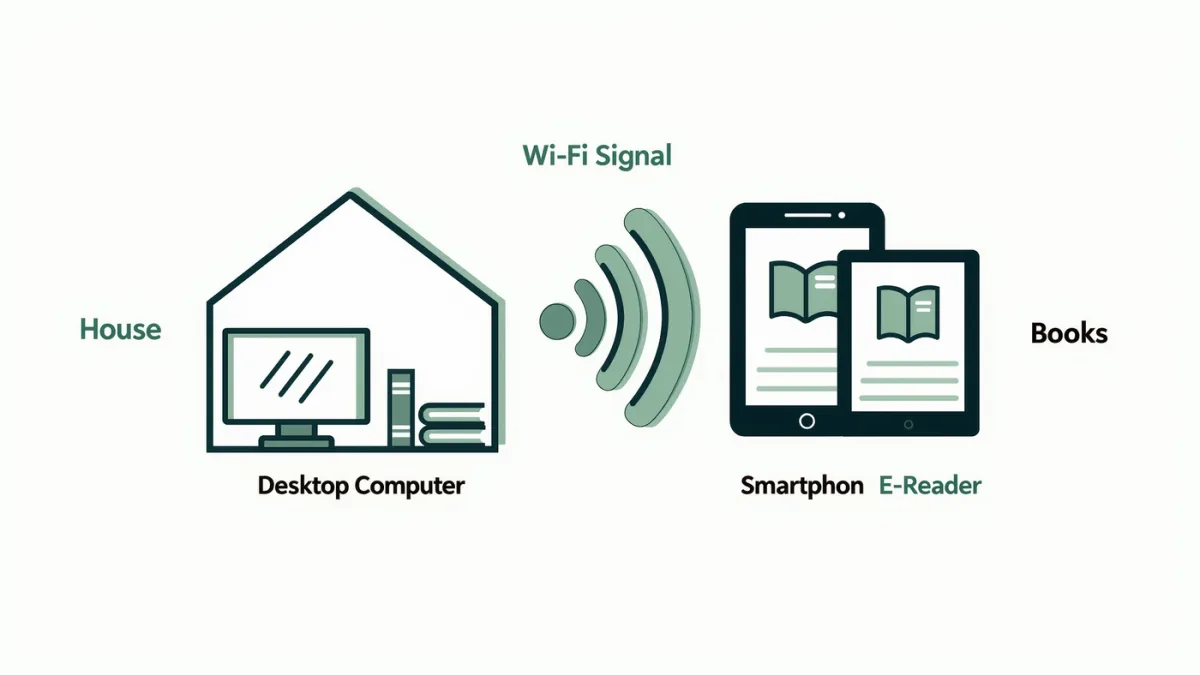
The built-in answer is Calibre's content server: one click in the desktop program serves your library over your home Wi-Fi, and any phone browser or companion app can browse and download from it. Calibre, the free open-source library manager by Kovid Goyal, has shipped this feature for years per its official documentation — no cloud, no account, and your files never leave your network.
This guide covers lawful transfer of your own DRM-free files only. Nothing here involves removing DRM from store books — that is a separate legal question we do not advise on.
What is the content server and how do you start it?
Per Calibre's user manual, the content server shares your library to devices on the same network. The flow is short:
- Open Calibre on the computer that holds your library.
- Start the content server from the Connect/share menu.
- On your phone, open the address Calibre displays in a browser — typically your computer's address plus port 8080.
- Browse by title, author, or tags, and download a book in the format your reader app accepts.
The browser route needs no extra app at all, which makes it the first thing to try.
What do companion apps add?
Companion apps polish the experience: bookshelf browsing, one-tap downloads into your reading app, and sometimes background sync. Search Google Play for Calibre companion apps and you will find several third-party clients that connect to the content server — treat each on its own merits, check its listing for requirements and permissions, and remember these are independent products, not part of Calibre itself.
The classic of the genre is Calibre Companion, a long-standing third-party Android client; its store listing describes integration with Calibre's wireless device connection. Newer alternatives come and go, so verify the app still matches your Calibre version before paying for anything.
Which connection method fits which situation?
| Method | Needs | Best for |
|---|---|---|
| Content server + browser | Same Wi-Fi | Quick occasional downloads |
| Third-party companion app | Same Wi-Fi (or configured access) | Regular browsing from your shelf |
| Cloud drive + reader app | Cloud account | Access away from home |
| USB cable | Cable | Bulk transfers, first setup |
The cloud-drive row is the honest alternative: if your Calibre library folder syncs to a cloud service, reading apps like Moon+ Reader or PocketBook Reader can open files from it directly, per those apps' listings. Slower, but works from anywhere.
How do you reach your library away from home?
Options, roughly in order of fuss: keep a cloud-synced copy of the library folder; use your cloud service's mobile app to grab a book on demand; or set up remote access to your home network yourself — a router-level topic with real security implications that Calibre's documentation itself flags as needing care. MonBook Pro publishes information, not networking advice; if you do not already know how to expose a service safely, use the cloud route instead.
Any setup tips that save headaches later?
- Convert to the format your reader app prefers before serving — Calibre's conversion is the program's other famous feature, per its manual.
- Fix metadata (titles, authors, covers) in Calibre first; companion apps display exactly what the library contains.
- Keep the content server off unless you are using it — simplest security is not listening.
- Pin one format per book to avoid downloading three versions of everything.
How does the wireless device connection differ from the server?
Calibre's manual distinguishes two wireless paths. The content server is browsing: your phone asks the library for a book and downloads it. The wireless device connection — the mode the classic Calibre Companion client was built around — treats the phone like a plugged-in e-reader, so the desktop Calibre interface can send books, update metadata, and manage collections remotely. Browsing suits readers who pick their next title themselves; device mode suits curators who push batches from the desktop.
Device mode is also where saved searches shine: define a smart collection once, and every sync pushes exactly what matches it to the phone.
What formats should you serve to phones and e-readers?
EPUB is the safe default for Android reader apps; Kindle-bound personal documents go in the formats Amazon's Send to Kindle documentation accepts. Calibre's conversion engine, per the manual, handles translation in bulk while preserving metadata edits. Two habits keep a served library tidy: choose one format per device family and stay with it, and let Calibre store multiple formats per book record so a single entry serves every reader in the house.
A quality note: text conversion is generally faithful, but fixed-layout books — cookbooks, art volumes, heavily designed PDFs — can reflow badly. Convert a sample chapter before committing a whole collection.
What breaks, and how do you fix it?
The common failures are mundane. The phone cannot see the server: usually a different network — many routers isolate guest devices, or the phone slipped onto cellular. Downloads stall: confirm the computer has not slept, because the server dies with it. A companion app stops connecting: check that it still supports your Calibre version, since both sides update independently.
And the classic mystery — you changed nothing and it stopped anyway — is answered by restarting the content server first. That single step resolves more Calibre puzzles than any other.
Is wireless really better than a cable?
For one book at a time, unquestionably — browse from the couch, download in seconds, no hunting for the right cable. For a five-hundred-title first migration, USB is still the workhorse and Calibre's device management handles it, per the manual. Most readers settle into a rhythm: cable for bulk, Wi-Fi for everything after. The content server costs nothing to try, which is the best argument for it.