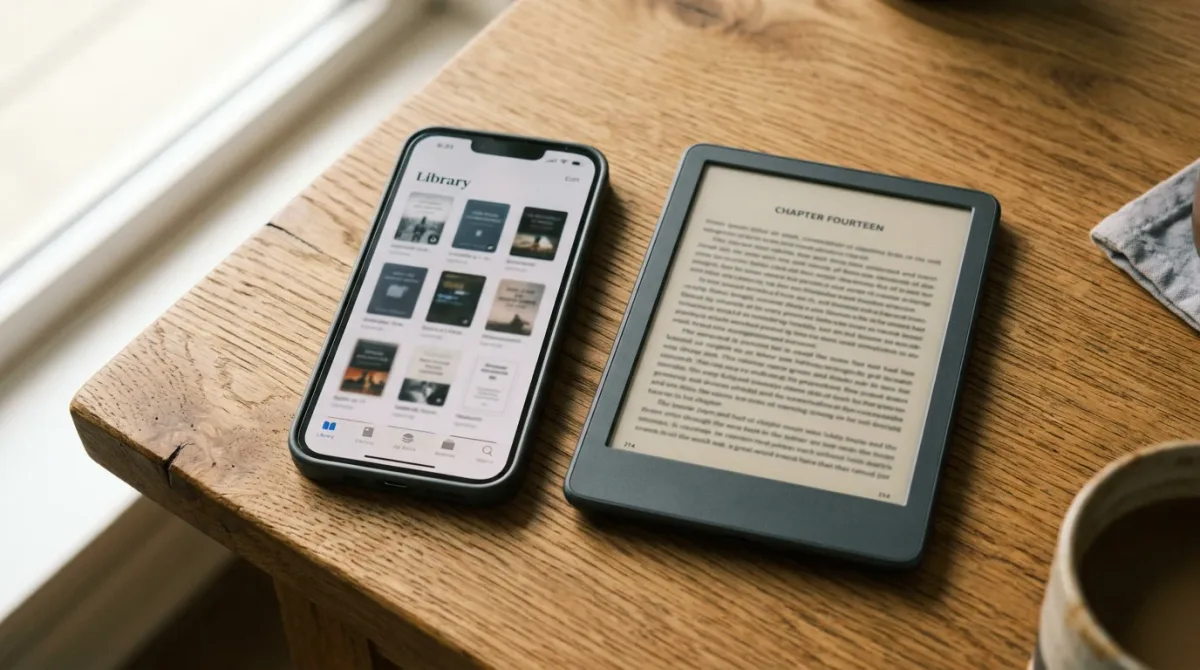
Yes: every current Kindle e-reader can borrow and read library ebooks, but not the way a library app usually works. The book has to pass through Libby, OverDrive's lending app, which then hands it off to your Amazon account for delivery — and the whole chain works only for U.S. library systems, per OverDrive's own documentation.
That's the short version. The longer version involves an extra sign-in step, a format restriction most readers hit without realizing why, and a hard geographic wall that doesn't budge no matter how the Libby app is configured. None of that is a bug — it's how OverDrive, the company that licenses Kindle-compatible ebooks to public libraries, built the pipeline. Here's what the process actually looks like, and where it breaks.
Can I Read Library Books on a Kindle at All?
Yes, but only for libraries that license Kindle-format ebooks through OverDrive, which describes itself as "the exclusive provider of Kindle-compatible ebooks to public libraries in the U.S.," per its own resource page for libraries. If your library offers Kindle Books, you can send them to a Kindle e-reader or a Fire tablet — just not by browsing a library catalog from the device itself.
The mechanism is a handoff, not a native library app on the Kindle. A title gets borrowed inside Libby or through a library's OverDrive website, then routed to Amazon's delivery system, and only then does it land on the actual device. Skip the handoff and the book never appears.
How Do You Actually Send a Library Book to a Kindle?
There are two supported paths, and both end at the same Amazon sign-in step. Which one you use mostly depends on whether you're already living in the Libby app or prefer browsing your library's website.
Method A — from the Libby app:
- Open Shelf, then tap Loans.
- Select a borrowed title and tap "Read With…"
- Choose Kindle.
- Sign into your Amazon account when prompted.
- Tap "Get Library Book" to send the title to your linked Amazon devices, per Libby's help documentation.
Method B — from your library's classic OverDrive website:
- Use advanced search and select "Kindle Book" in the formats filter.
- Click Borrow and choose a lending period if your library offers a choice.
- Select "Read now with Kindle."
- Complete the handoff on Amazon's site — OverDrive's help center notes that "you must complete this step for the book to appear on your Kindle device or reading app."
Either way, the Kindle itself needs a Wi-Fi connection to pull the file down from Amazon's servers once the handoff is done, per OverDrive's documentation.
| Method | Where you start | Best for |
|---|---|---|
| Libby app | The Loans screen on your phone or tablet | Readers who already manage holds and loans in Libby |
| Library's OverDrive website | A browser, searching by "Kindle Book" format | Readers who prefer browsing on a bigger screen or don't use the Libby app |
Why Won't a Book Send to My Kindle?
Three specific things block delivery, according to Libby's help documentation, and none of them require reinstalling anything.
- The title isn't offered in Kindle format. Check the "Read With" section on the book's details page to confirm before borrowing.
- You already downloaded it in another format. If you grabbed the EPUB through Libby or your library's OverDrive site first, you can't also send it to Kindle without returning the loan and borrowing it again.
- Your reading preference is set to "Libby." That setting routes every loan into the Libby app by default, which quietly overrides the "Read With Kindle" option unless you change it.
Does This Work Outside the U.S.?
No. Both OverDrive's resource page and its help center are explicit that "Kindle Books are available for U.S. libraries only" — that's a licensing limitation, not a settings toggle, and it applies no matter which Amazon marketplace your account is registered to.
Readers outside the U.S. still borrow through Libby normally; they just read inside the Libby app itself rather than sending files to a Kindle device, since that delivery path doesn't exist for their library's catalog.
What About Fire Tablets?
Fire tablets are supported too — OverDrive lists compatibility for "Fire tablets from 2020 or later, plus some earlier models" — but Libby's own device guidance recommends against using the Kindle-delivery method on a Fire tablet at all. Instead, it tells Fire owners to "install and read with Libby instead," since a Fire tablet can run the full Libby app natively rather than needing the Amazon handoff a dedicated Kindle e-reader requires.
Frequently Asked Questions
- Do I need Wi-Fi to get a library book onto my Kindle? Yes — per OverDrive's help documentation, "Kindle ereaders need a Wi-Fi connection to download library Kindle Books from Amazon," even after you've completed the handoff on Amazon's site.
- Can the same loan be open on Kindle and in the Libby app at once? No. Per Libby's help center, downloading a loan in one format blocks sending it in another until you return and re-borrow it.
- Why won't a specific book send to my Kindle? The three most common causes, per Libby's documentation, are: the title isn't offered in Kindle format, it's already downloaded elsewhere, or your reading-preference setting is overriding the Kindle option.
- Can I read Libby books on a Fire tablet instead of a Kindle e-reader? Yes — Fire tablets from 2020 or later are supported, though OverDrive recommends using the Libby app directly on a Fire rather than the Kindle-delivery flow.
What the supplied documentation doesn't cover: neither OverDrive nor Libby's help pages specify how long delivery typically takes over Wi-Fi, or which individual older Kindle models, if any, fall outside current support. If you're troubleshooting a stalled delivery beyond the steps above, that's a case for your library's own help desk rather than anything documented here.
For more context, read How to Read Library E-Books on a Kindle (and When You Can't).
For more context, read Can You Read Library and Purchased Books on Any E-Reader?.
For more context, read Which E-Reader Handles Library Books Best?.